Source Optitrack
The OptiTrack source receives one rigid body pose from an OptiTrack Motive server over the NatNet protocol, and exposes it as a Pose3D channel that any rig node can bind to.
For the end-to-end Motive + RigFX setup, see the OptiTrack edition tutorial.
What it publishes
| Channel type | Source channel | Where to bind it |
|---|---|---|
| Pose3D | optitrack |
A node on the Rig page — usually a single node representing the tracked camera body |
The pose is the rigid body's position (metres) and orientation, in OptiTrack's world frame. Match the Motive coordinate system to your studio convention before binding — see Concepts → Camera Rig.
Source card
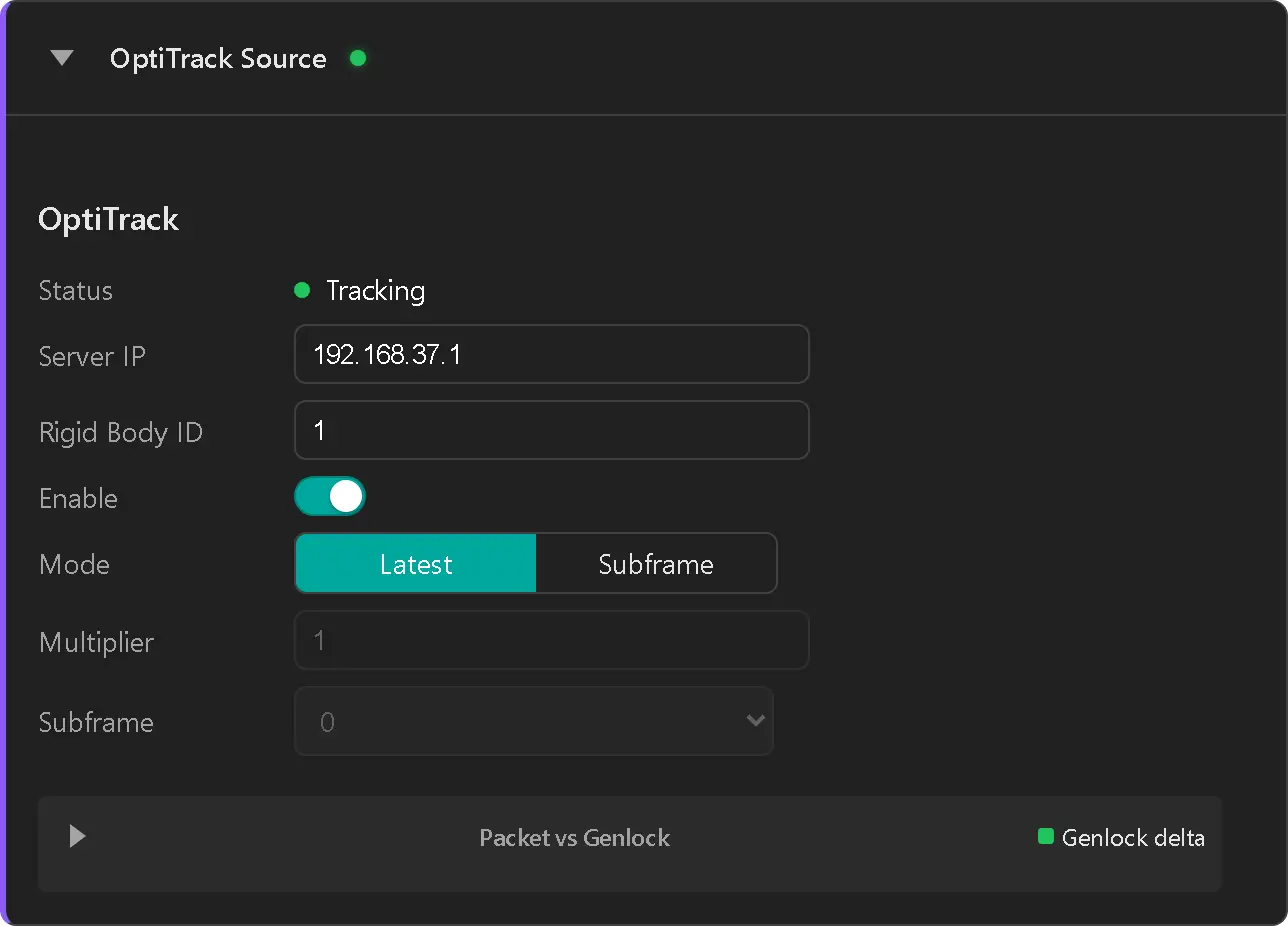
| Field | What it does |
|---|---|
| Status | LED + label. See Status states below. |
| Server IP | IPv4 address of the Motive PC. Must be reachable from RigFX (same subnet or a route in place). |
| Rigid Body ID | Streaming ID of the rigid body in Motive (1–9999). Must match the Streaming ID field in Motive's Assets → Rigid Body Properties. |
| Enable | Toggles the source on/off. RigFX only opens the NatNet sockets and starts the handshake once enabled. |
| Mode | Latest uses the most recent NatNet packet received before the genlock pulse. Subframe picks one specific packet from the buffered batch — use this when Motive runs at a multiple of the genlock framerate (e.g. 240 Hz Motive vs. 60 Hz output). |
| Multiplier | Only active in Subframe mode. The same value as the Camera Rate Multiplier configured in Motive's Edit → Settings (or, with an eSync 2, the Input Multiplier). Range 1–16. |
| Subframe | Only active in Subframe mode. Which buffered packet to consume on each genlock pulse — 0 is the first, Multiplier-1 is the last. Pick the subframe whose arrival time best aligns with your output frame in the reception graph. |
| Packet vs Genlock graph | Shown when the source is enabled. Plots NatNet packet arrival deltas against the genlock pulse so you can see jitter and pick a subframe. |
Status states
The Status row reflects the connection + tracking state. The card header also shows a green LED when OK and a warning icon otherwise.
| LED | Label | Meaning |
|---|---|---|
| Off | Disabled | The Enable toggle is off. No sockets opened, no traffic. |
| Off | Not Connected | Enabled but no NatNet handshake. Motive unreachable, wrong Server IP, or Motive not streaming. RigFX retries the handshake every second. |
| Yellow | No rigid body with ID N in stream | Handshake OK and frames are flowing, but no rigid body in the stream matches the configured Rigid Body ID. Wrong ID, or the asset isn't being streamed. |
| Yellow | Rigid body N not tracked (occluded or inactive) | Handshake OK and the rigid body is in the stream, but Motive's trackingValid flag is false. The body is occluded by markers being hidden, or the asset is deactivated in Motive. |
| Yellow | No Rigid Body | Handshake OK but no rigid body data has arrived yet for the configured ID (brief transient). |
| Green | Tracking | Frames flowing, configured rigid body present and tracked. |
Network requirements
- RigFX and the Motive PC must be on the same physical network. A gigabit switch is recommended — see Hardware → Network.
- RigFX connects to Motive on UDP port 1510 (command channel) and listens for frame data on UDP port 1511. Make sure these aren't blocked by a firewall on the Motive PC.
- The transport must be Unicast in Motive's Edit → Settings → Streaming (multicast is not supported). Set Local Interface to the Motive PC's IP on the studio subnet — see the tutorial for the exact steps.
- RigFX sends
SubscribeByIDafter the handshake so Motive only streams the configured rigid body — no markersets, skeletons, or other rigid bodies travel over the wire. This keeps bandwidth low even on busy capture volumes.
Troubleshooting
Status stays at Not Connected
- Verify the Server IP matches the Local Interface set in Motive's Streaming panel
- Confirm Motive's Stream Rigid Bodies checkbox is on and Transmission Type is Unicast.
- From a terminal on the Motive PC, check that UDP 1510 isn't blocked. If a Windows Firewall prompt fired the first time Motive started, allow the Motive app on the studio network.
- Once the issue is resolved RigFX reconnects automatically — no need to disable/re-enable.
Status shows No rigid body with ID N in stream
- The Rigid Body ID field on the RigFX card must match the Streaming ID column in Motive's Assets panel, not the row number or the asset name.
Status shows Rigid body N not tracked
- Markers are occluded — check that enough markers are visible to the cameras in Motive's live view.
- The asset is deactivated in Motive (greyed out in the Assets panel) — activate it.
- The rigid body lost solve quality and Motive dropped tracking briefly — RigFX shows the warning after a short hysteresis so it doesn't flicker on single dropped frames.