Export For Ross - Lucid
Choose Ross Lucid export in CalibFX Lens:

Lens Files Folder
It is recommended to store user lenses in a new user-specific folder.
Create a new folder in your documents:

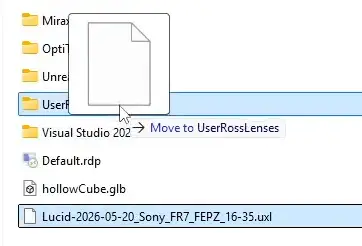
Move or copy the exported lens file into this folder:
Lucid Configuration
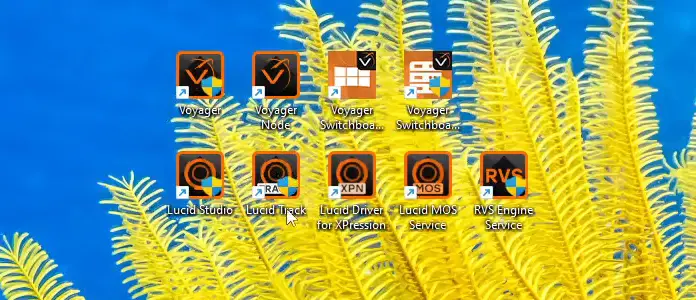
Open Lucid Track:
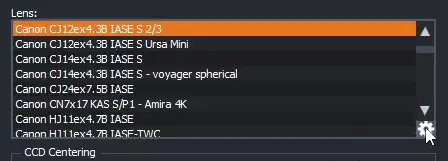
At the bottom-right of the lens list, click on the cogwheel:
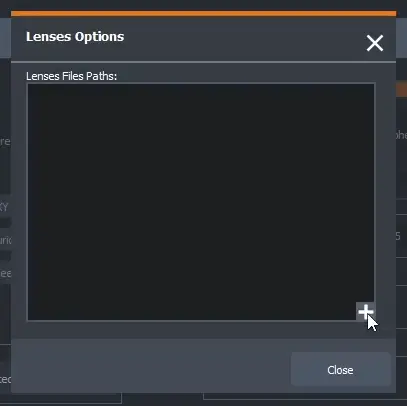
Add the bottom-right, click the "+" button:
Restart Lucid Track to update the lens list. The new lens should have appeared in the list:

Double-click on the lens to select it. The software asks if you want to use the lens bounds from the lens file. Usually you will want to say Yes, unless the tracking system is different from the one used during calibration, and the new one was not taken into account at lens export time:
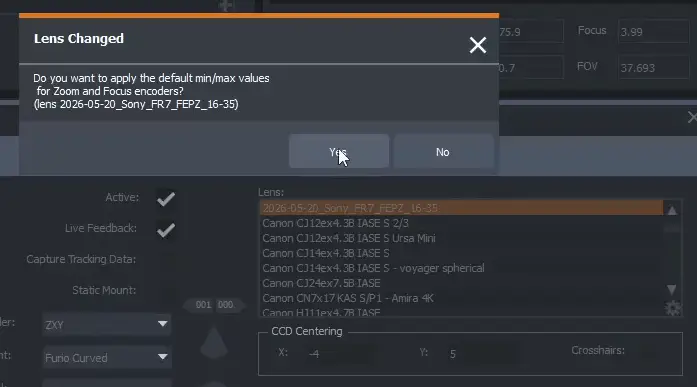
Centershift
Centershit is never read from the lens file. The user must re-do it manually inside Lucid Track.
Toggle on the crosshair, on the right of the CCD centering values, under the lens list:
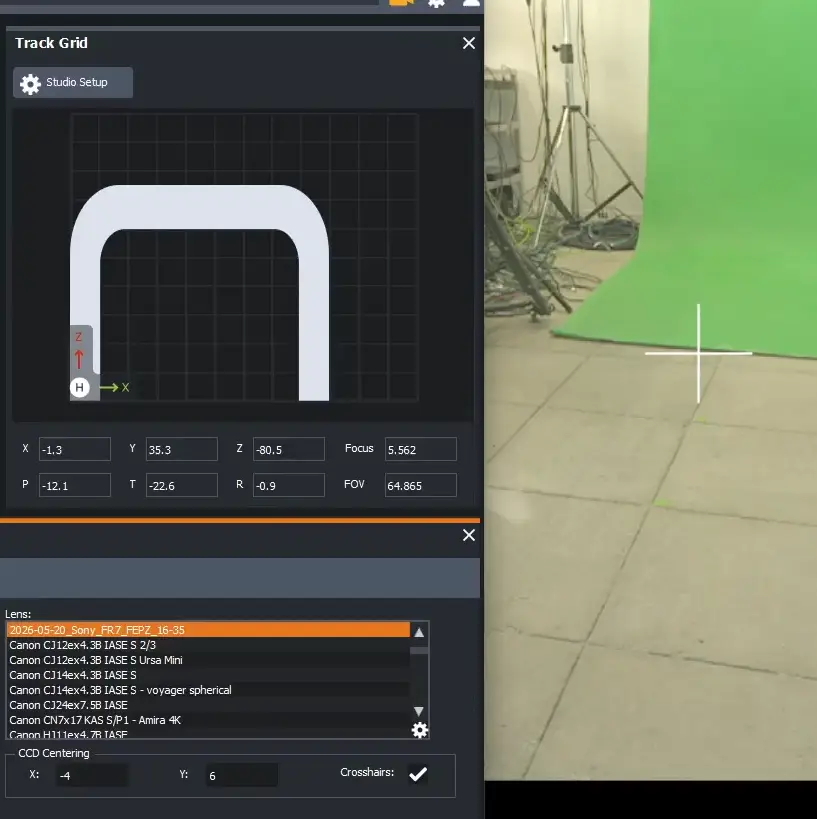
A white cross appears in the middle of the Ross Voyager output.
Identify a salient point in the video and center it on the crosshair in camera view while fully zoomed in, lock the camera, then go to wide angle and re-align the cross using the X and Y fields. You can iterate this process a couple times until the cross always stays on the same point with zoom.