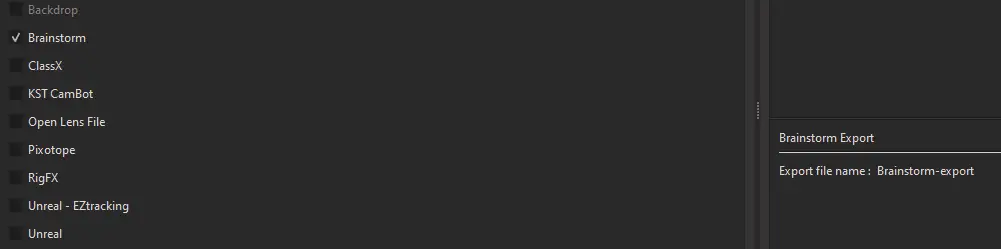
Brainstorm Export
Choose Brainstorm export in CalibFX Lens:
Install the Lens File
Copy the generated lens file in [Brainstorm Install Path]/share/configs/camera.
By default, this could be C:/Program Files/Brainstorm/Suite 6.0/share/configs/camera.
Video Setup
Open Brainstorm Video Setup. Under "Video Setup Preset List", select Custom Video Configuration. On the left, set up the input and ouput streams according to your video card:
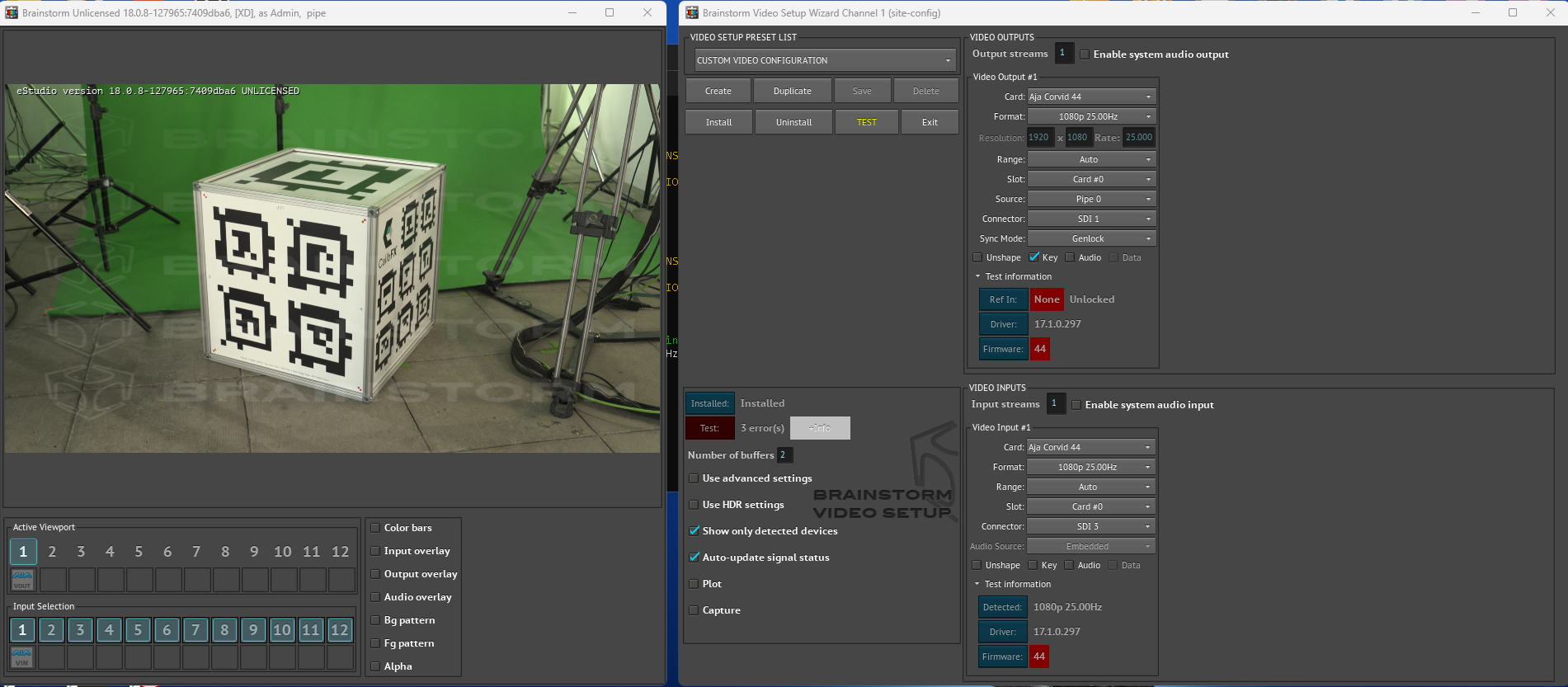
When video I/O is working correctly, press "Create" to make a new video configuration:
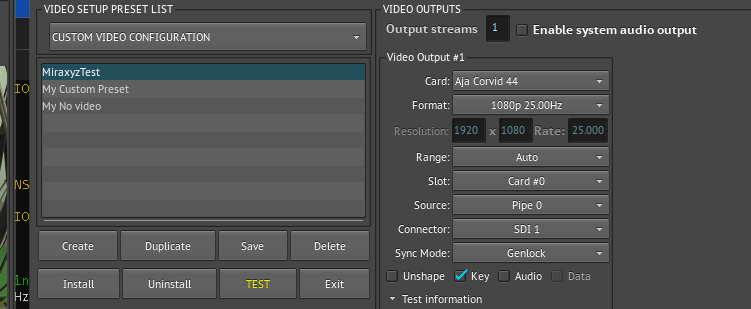
You can double-click the name to rename the configuration. Press "Save".
Camera Setup
Load the Lens File
Close VideoSetup and open Brainstorm Camera Setup:
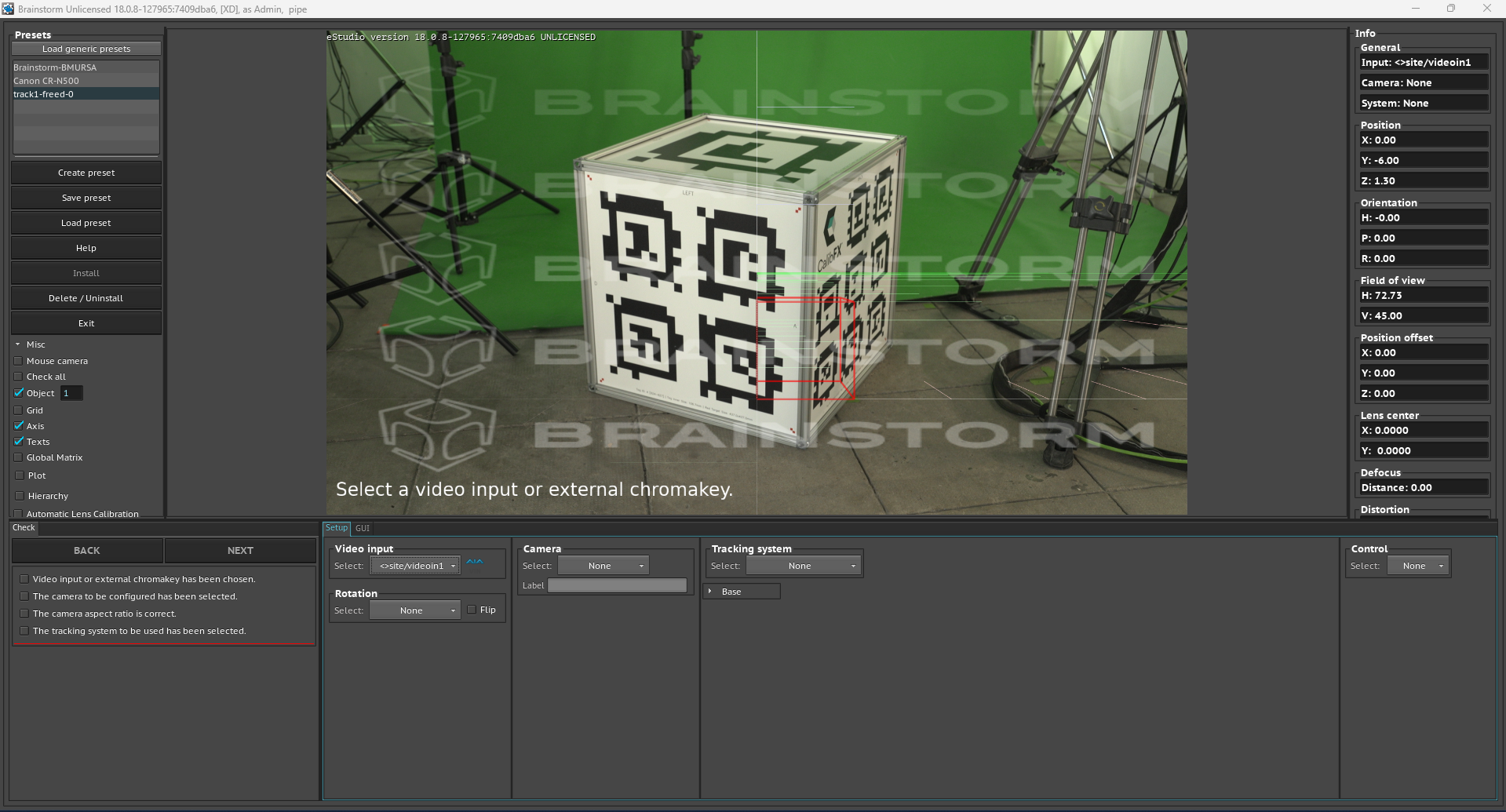
Select <>site/videoin1 to use the first video input configured in VideoSetup.
At the top-left, press "Load Generic Presets" and select your lens file:
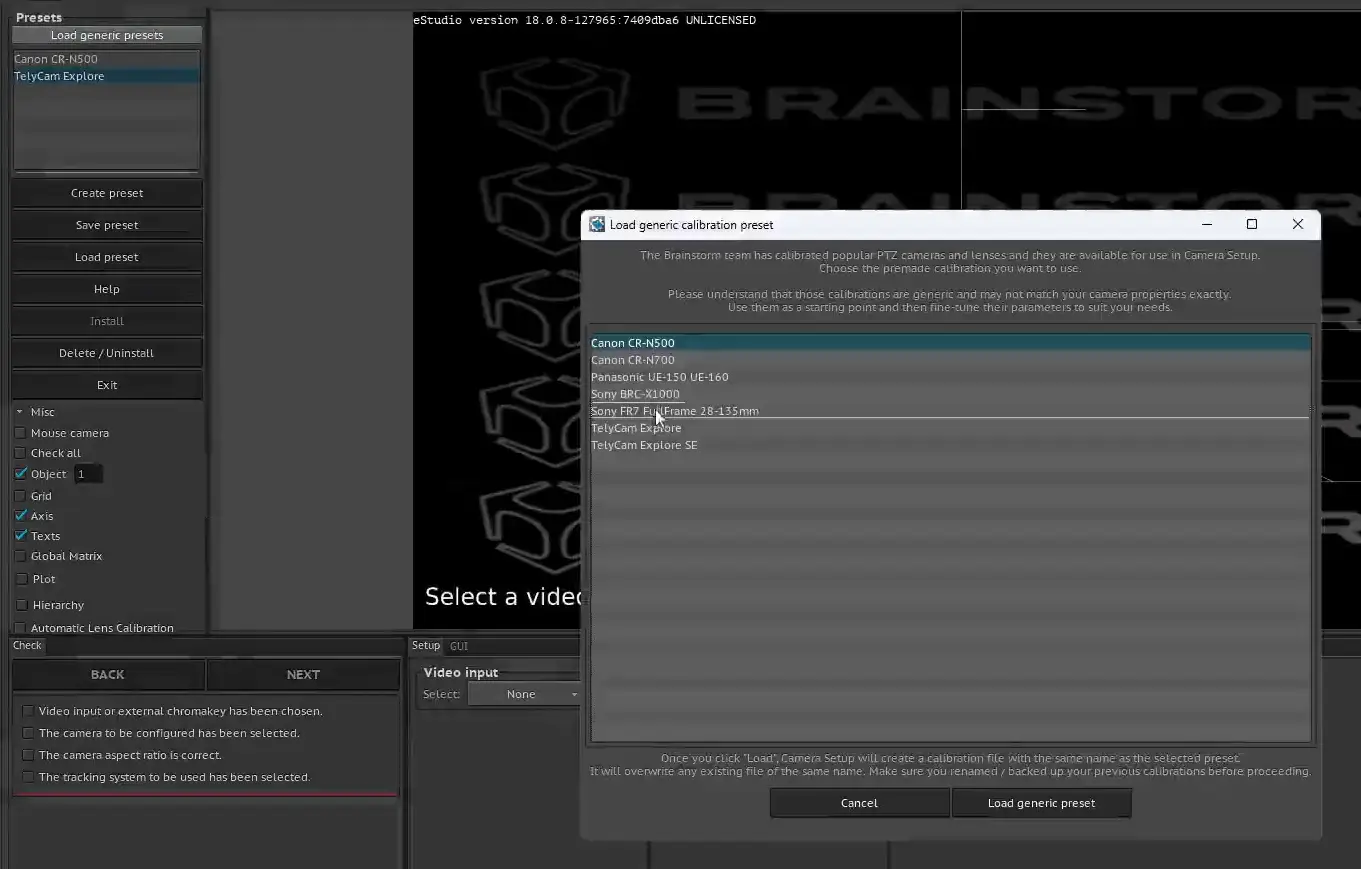
Press "Load Generic Preset" at the bottom of the pop-up window.
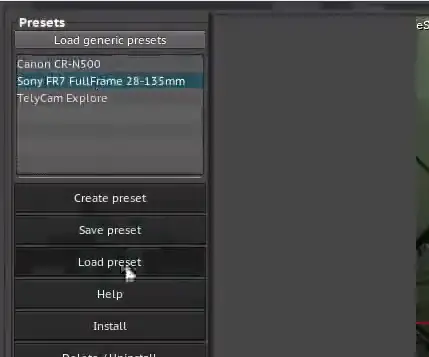
Select the preset in the list and press "Load Preset":
Configure Tracking
The exported lens files create a FreeD (d1) tracking source by default, and set the aspect ratio to 16:9
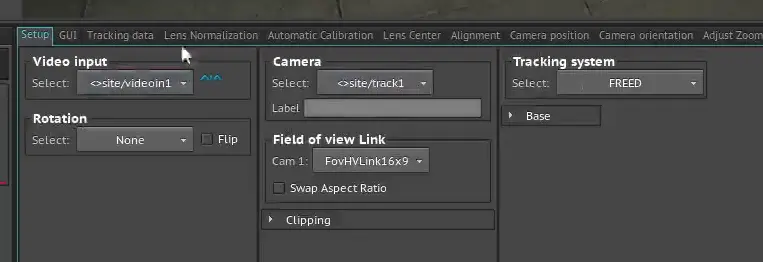
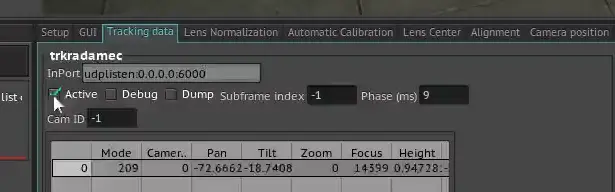
At the minimum, you will have to change the receiving port in the Tracking Data tab, in the InPort field, then check on "Active":
Of course you can also completely change the tracking system if you need.
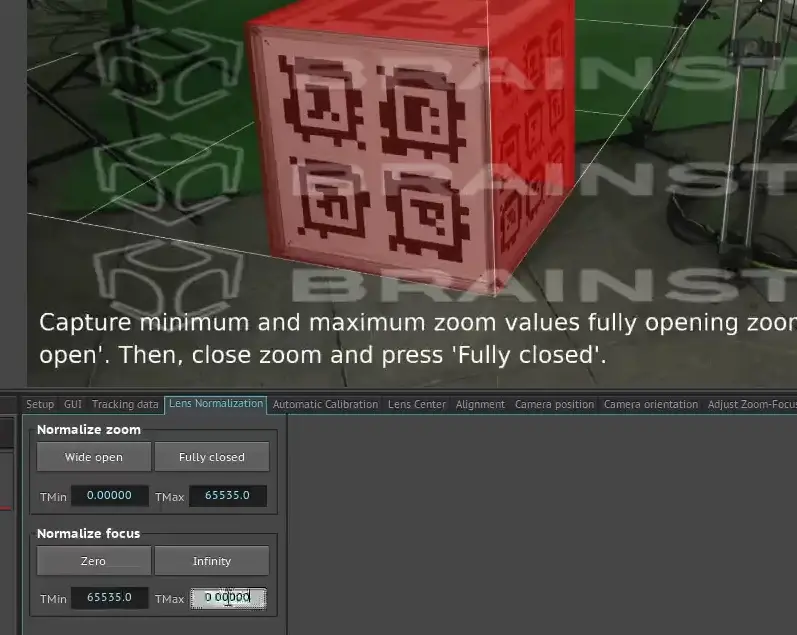
If you do, make sure the lens encoder normalization is still valid, or edit it accordingly: