Configuration
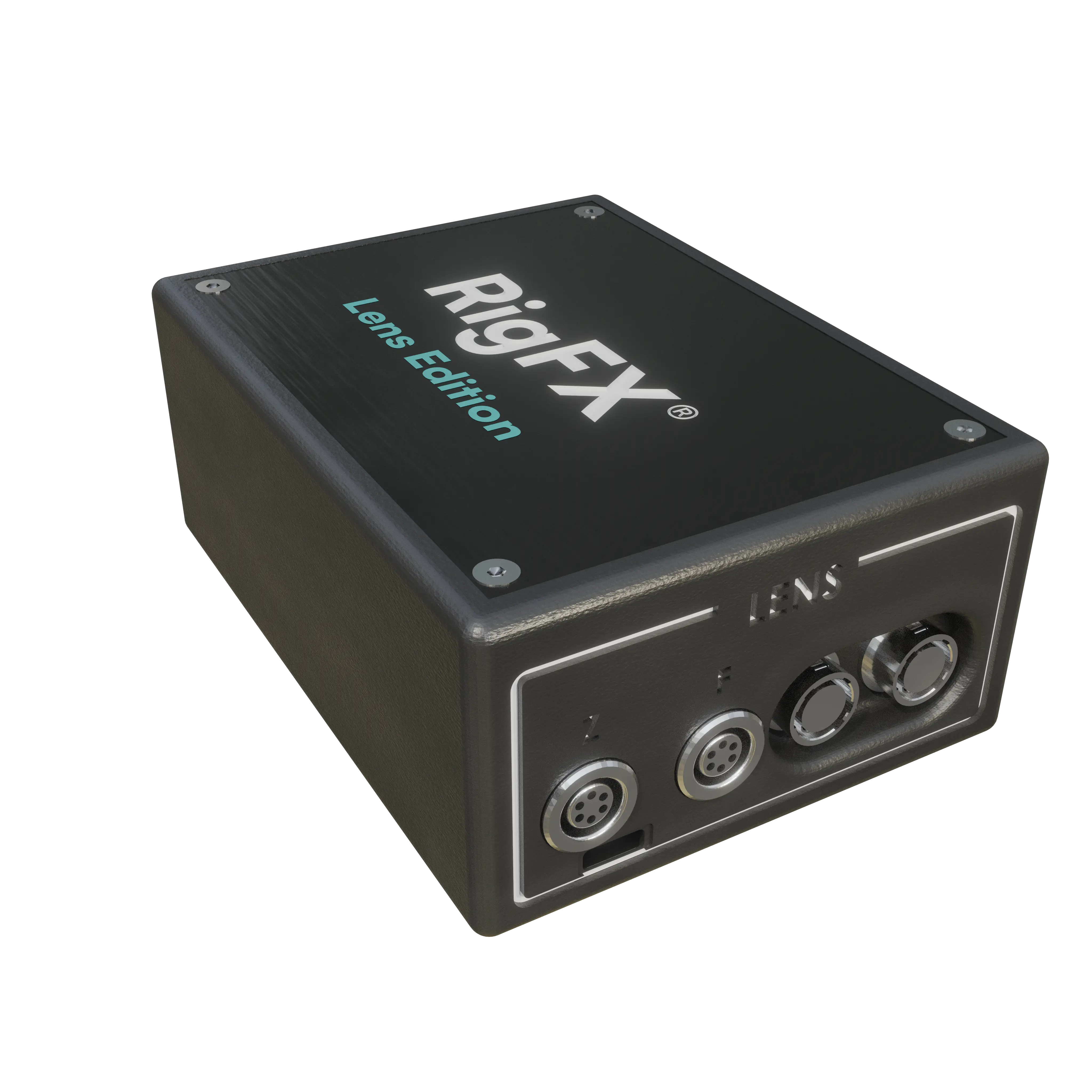
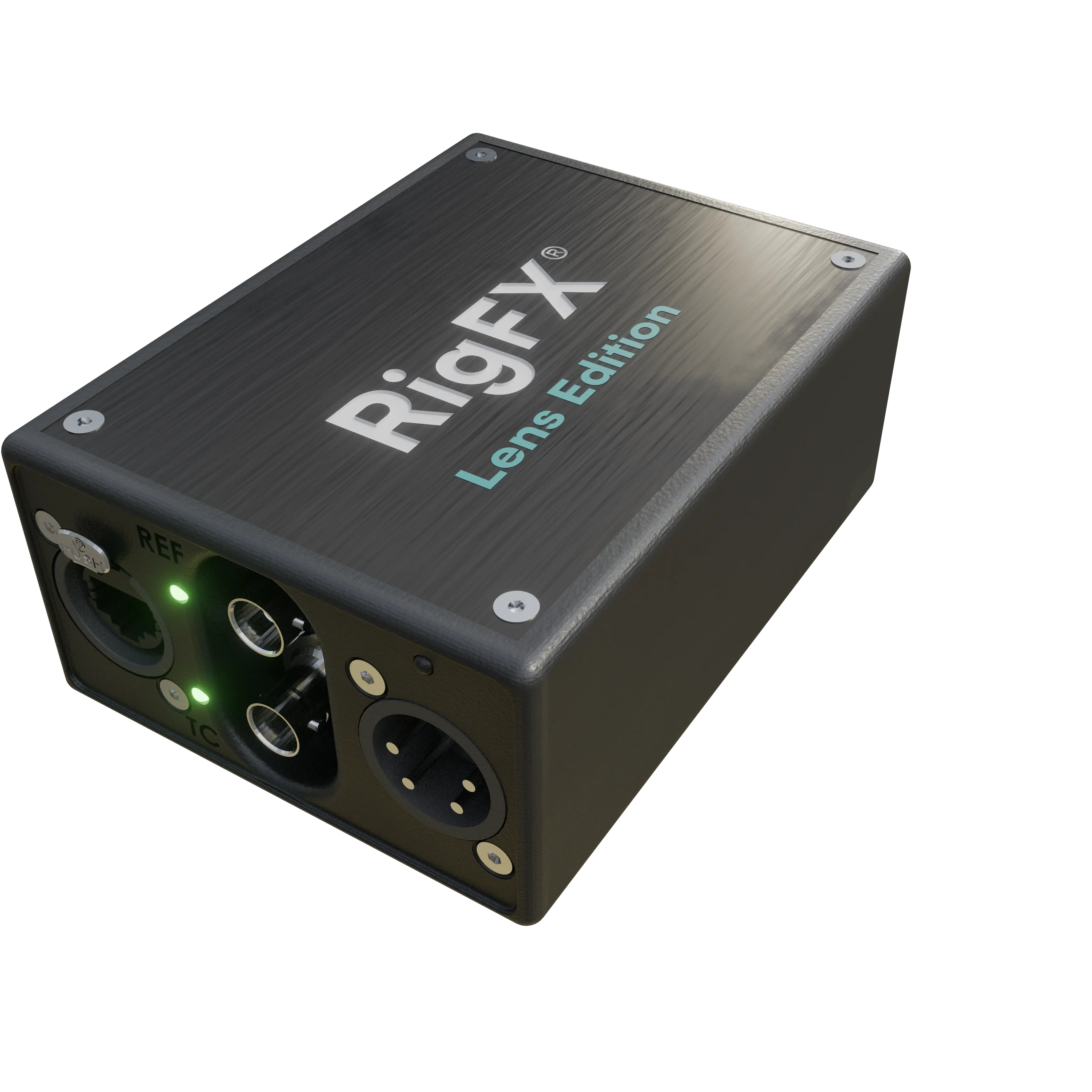
1. Connection
- plug genlock into Ref
- plug network cable
- plug power
2. Network
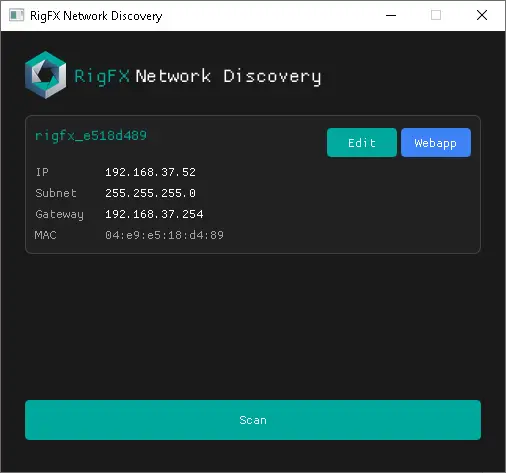
Use the RigFX discovery tool to discover RigFX on the network and assign an ip that fit your network infrastructure.
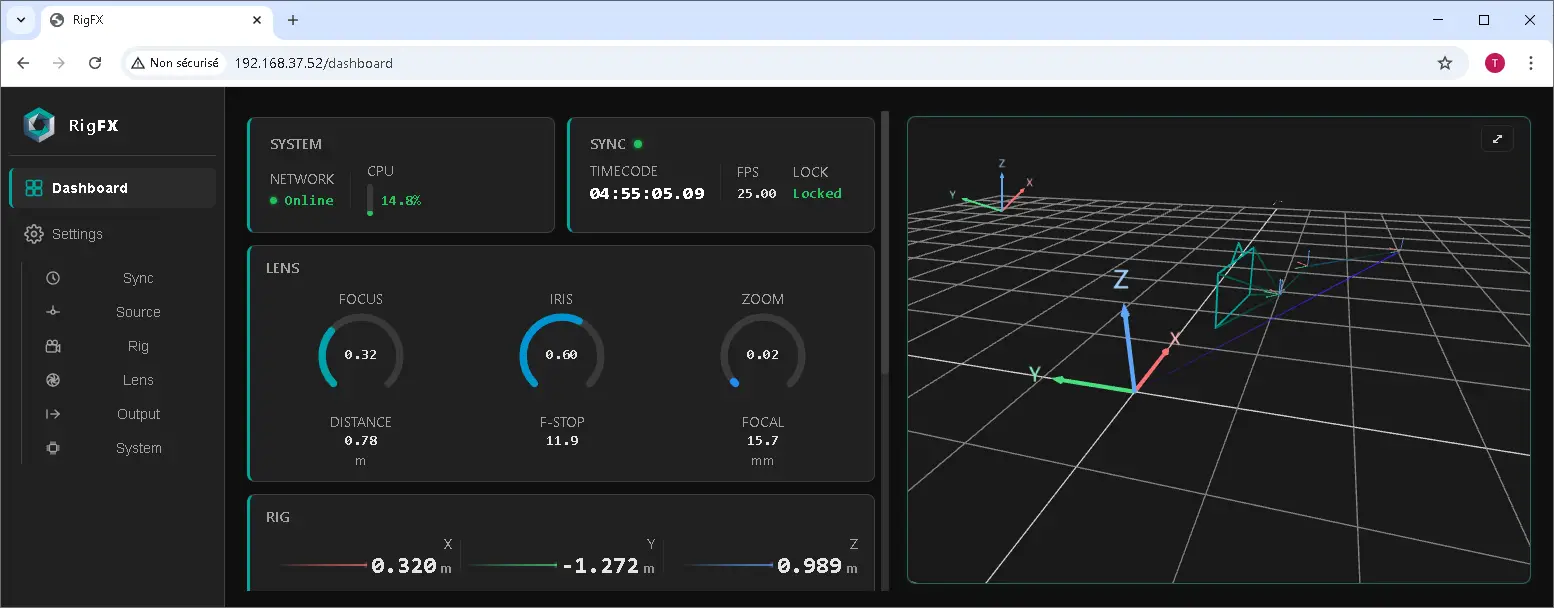
You can access RigFX webapp by clicking on webapp button or using the ip address in any browser like Chrome.
http://XX.XX.XX.XX (replace XX with your current ip address).
3. Sync
physically:
- plug a genlock to rigFX in the ref port
On RigFX go to:
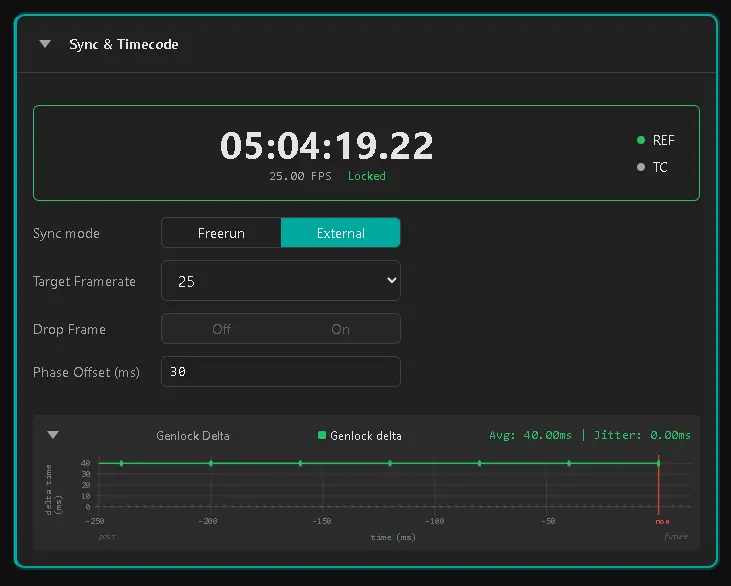
- settings / Sync
- sync mode: set External
- target FrameRate: set the expected framerate
- you should check the displayed FPS below timecode is the one you set, and the status has to be locked
- a graph below display genlock pulse arrival time
4. Source
- go to Settings / Source
- configure the corresponding source
5. OpenTrackIO Source
On camera setup menu:
- target RigFX ip adress for OpenTrackIO
On RigFX:
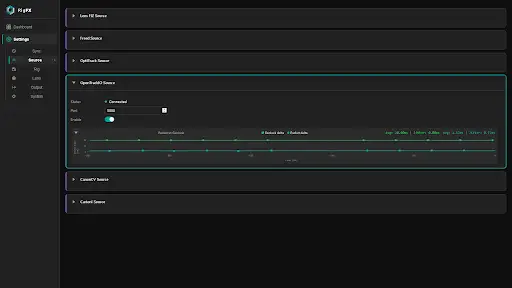
- go to Settings / Source / OpenTrackIO
- set the reception port
- enable the source
- On the graph below source you should see incoming packet
- if the two lines are on top of each other, set some Phase Offset in Settings / Sync to differentiate the two
6. Rig
- go to Settings / Rig
- add a node named for each segment of your rig
7. Lens
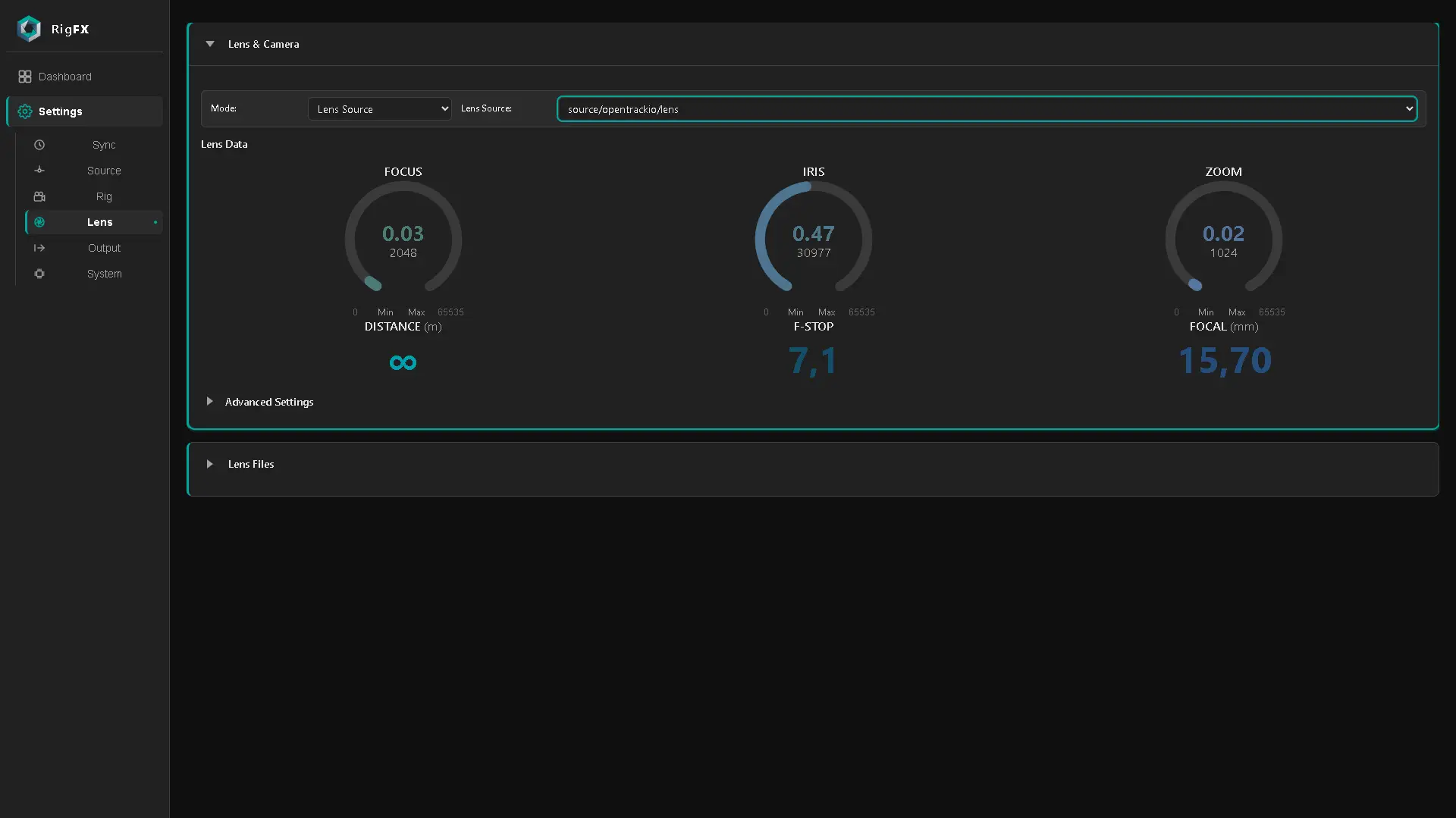
- go to Settings / Lens
- set mode to Lens Source
- set Source to OpenTrackIO
8. Output
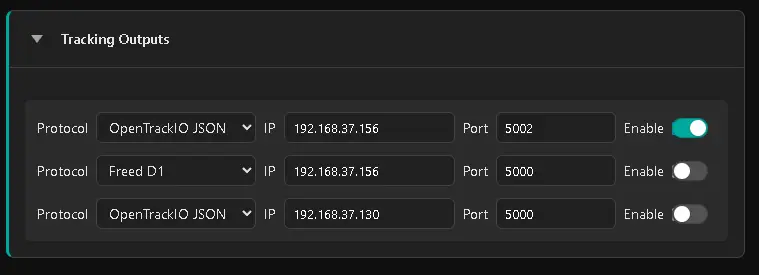
- Go to Settings / Output
- set at least 1 target destination to Render Engine
- OpenTrackIO JSON
- set the target ip of the render computer
- set the port
- enable it