Led Wall Lineup with Unreal nDisplay
1. On Unreal (5.6+)
Open your Led Wall Unreal Project.
In the Content Browser, you will find the nDisplay Class, the mesh and texture elements for your LED wall
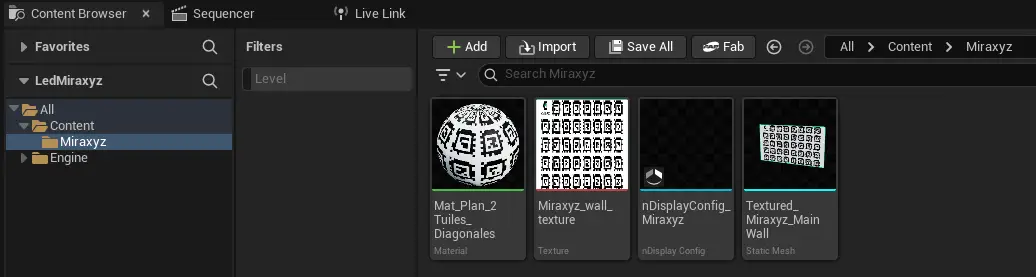
(the nDisplay class is already added to the main level)
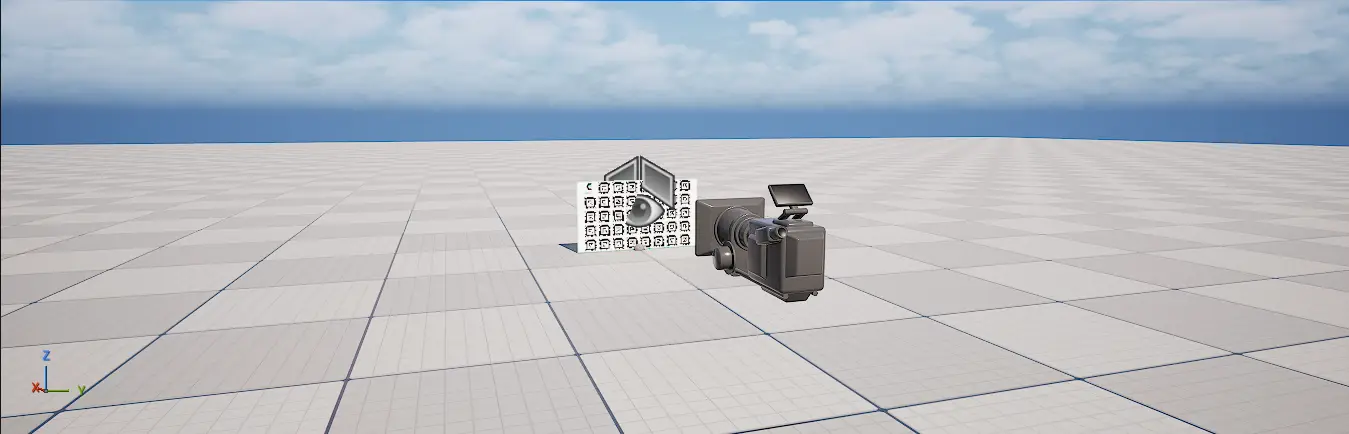
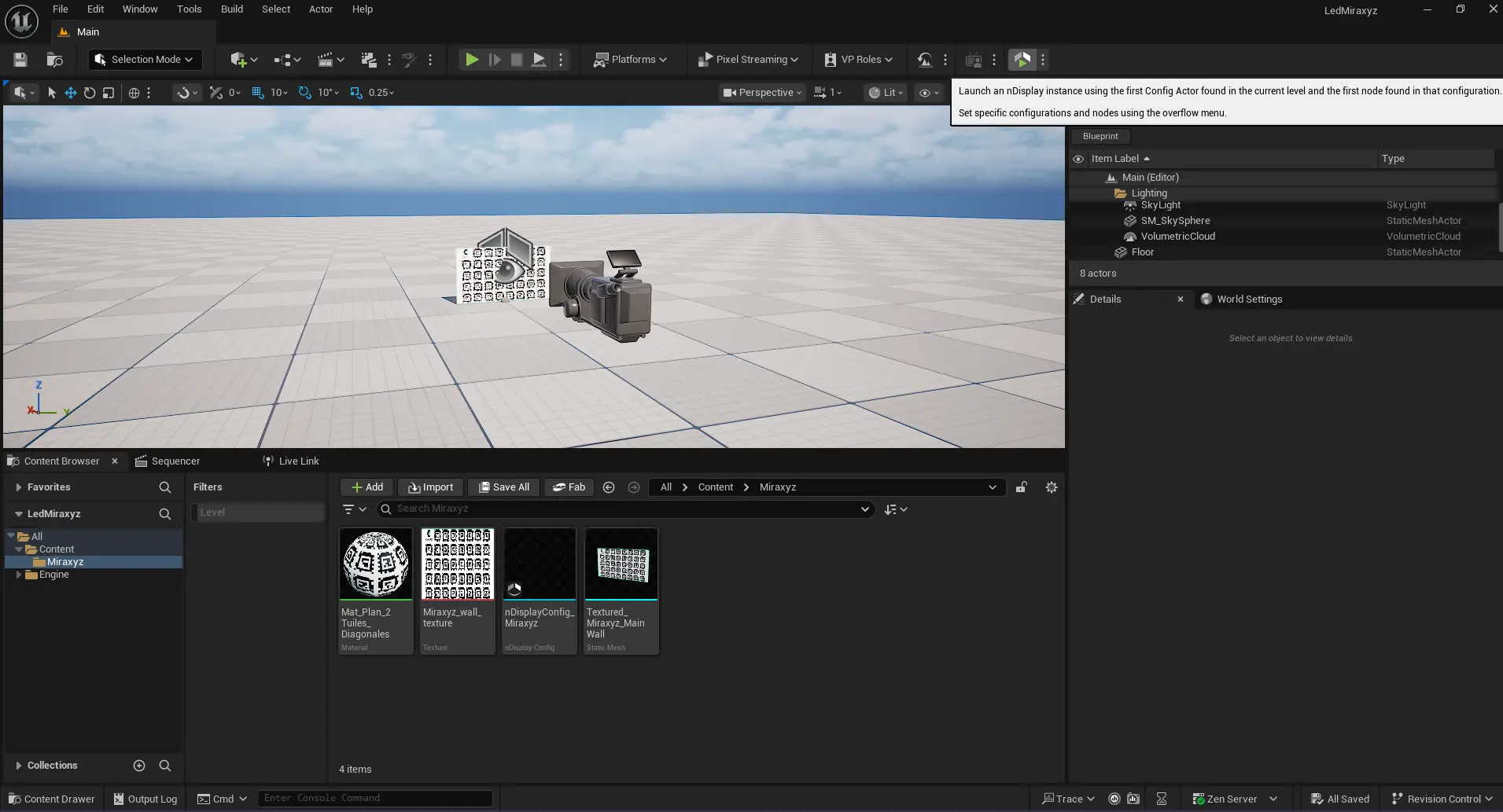
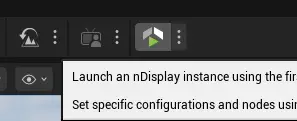
On the main toolbar, clic on the nDisplay Launcher button (upper right corner) to display the AprilTag texture on your LED wall
1.1. nDisplay config details
To reflect the geometry of your wall in the nDisplay mesh:
On the mainWall element, the Static Mesh value refer to your LED wall mesh element
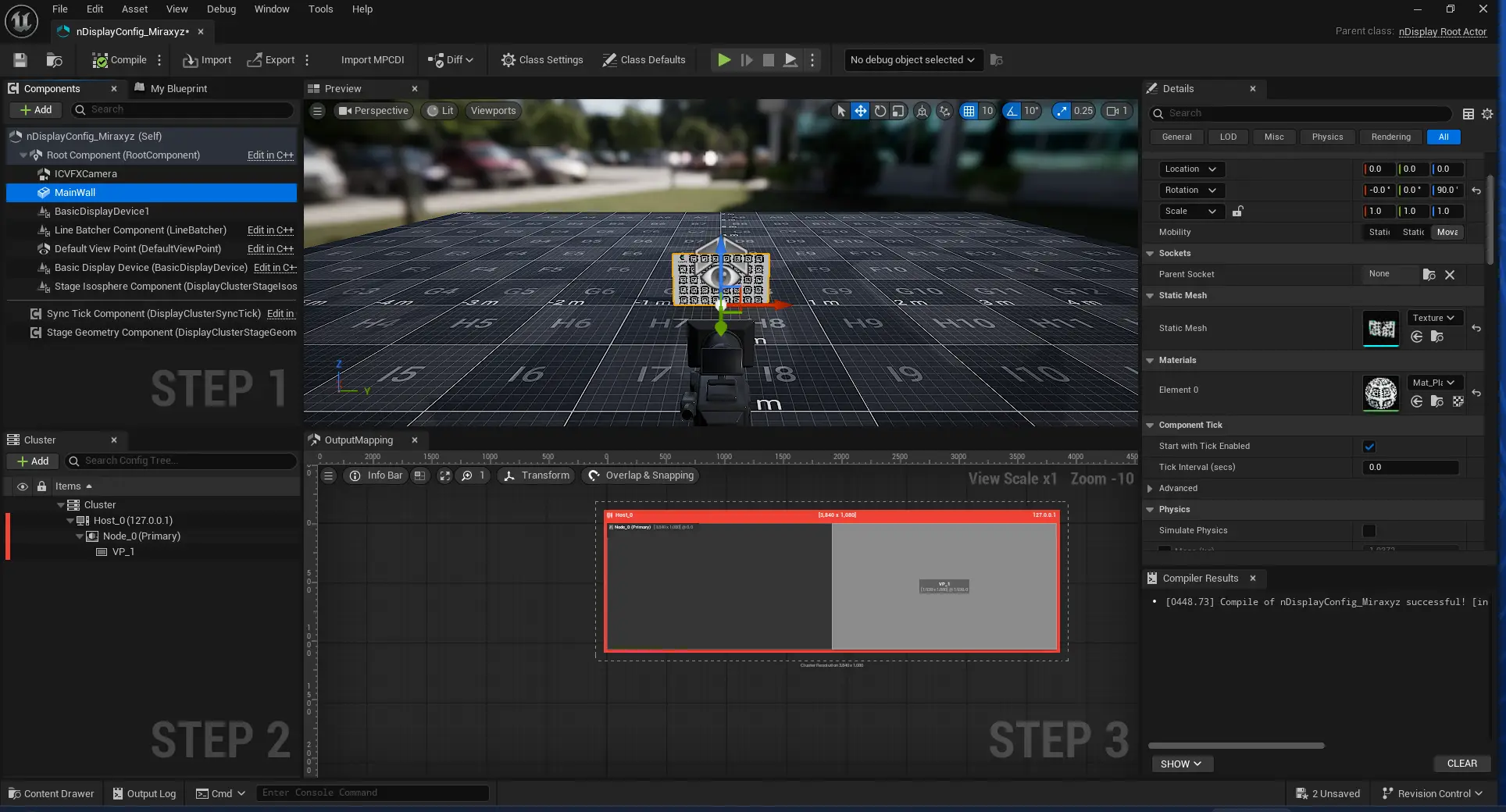
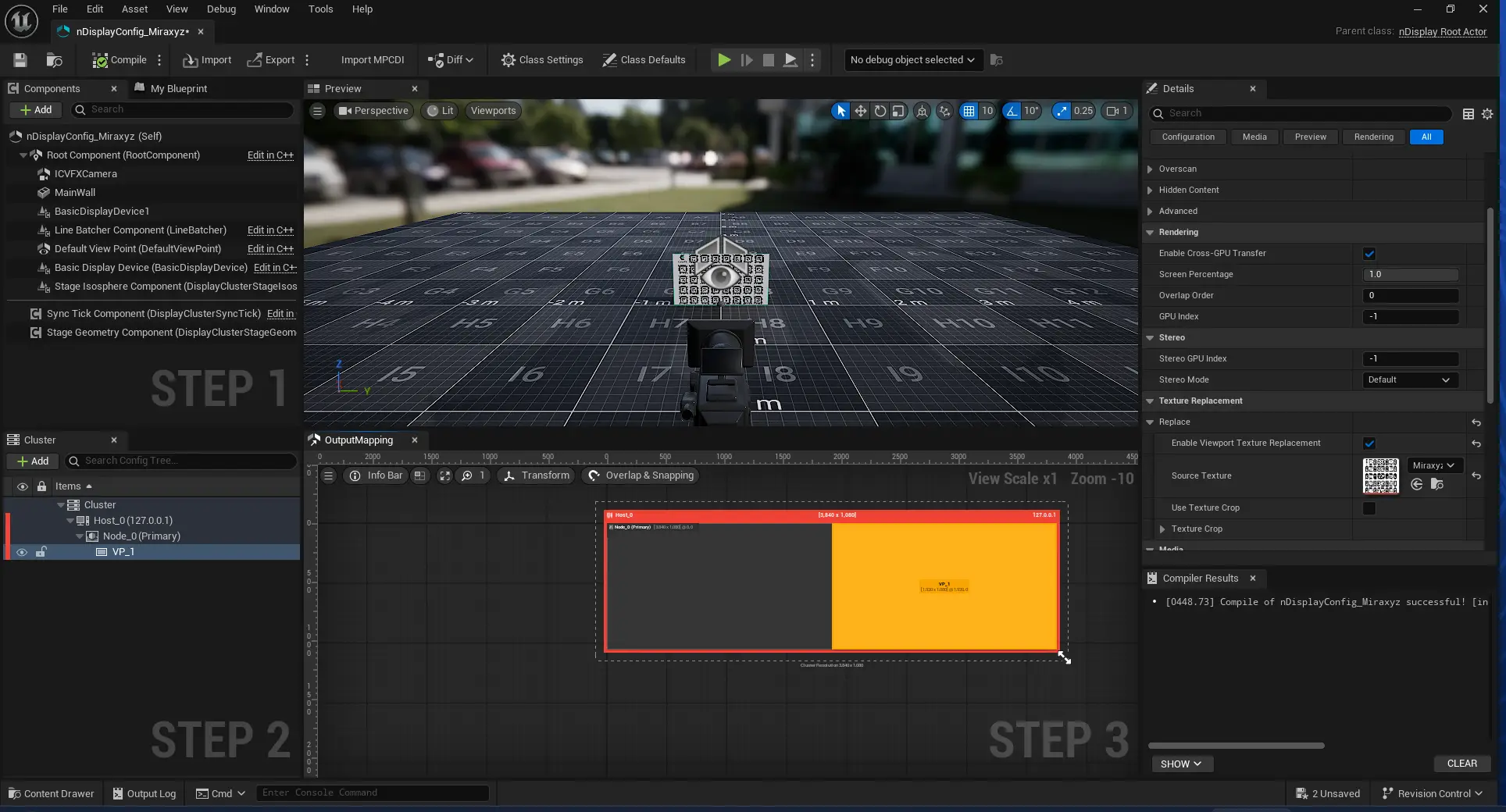
To display the April tag texture to the nDisplay output:
- the Source Texture value refer to your AprilTag wall texture element
- the option Enable Viewport Replacement is checked
2. On CalibFX Lineup
Launch CalibFX Lineup.
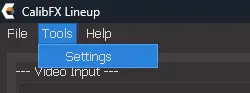
Open the Settings menu
Open the Calibrator tab
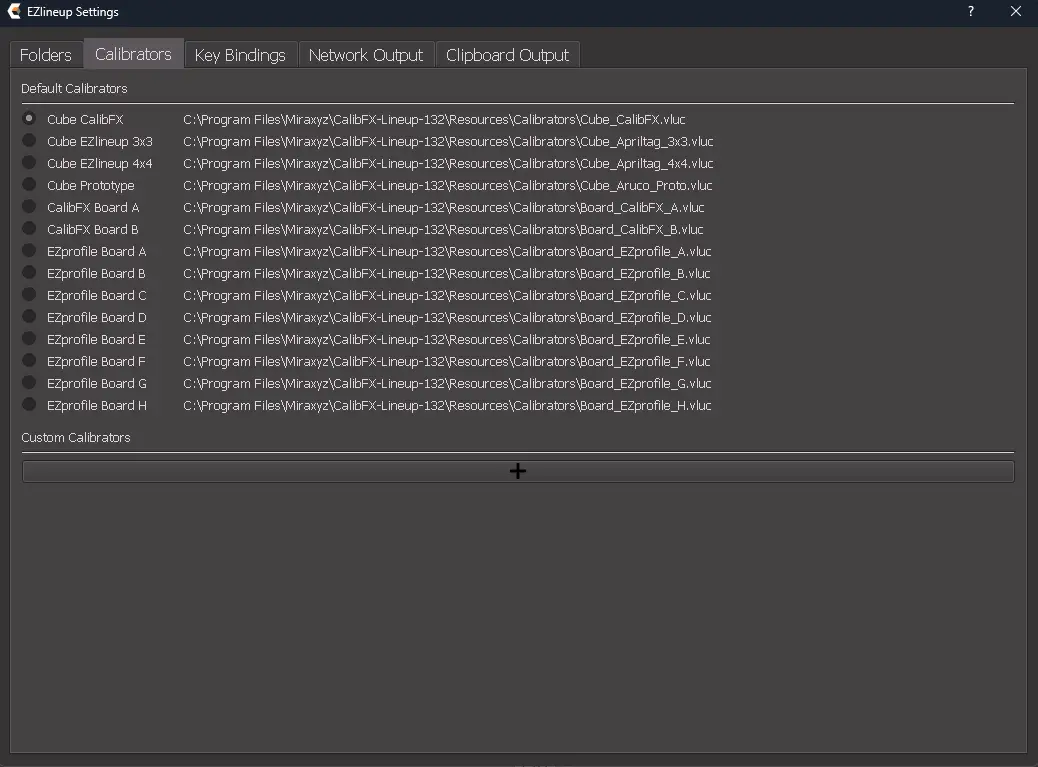
On the Custom calibrators section, clic on the + icon
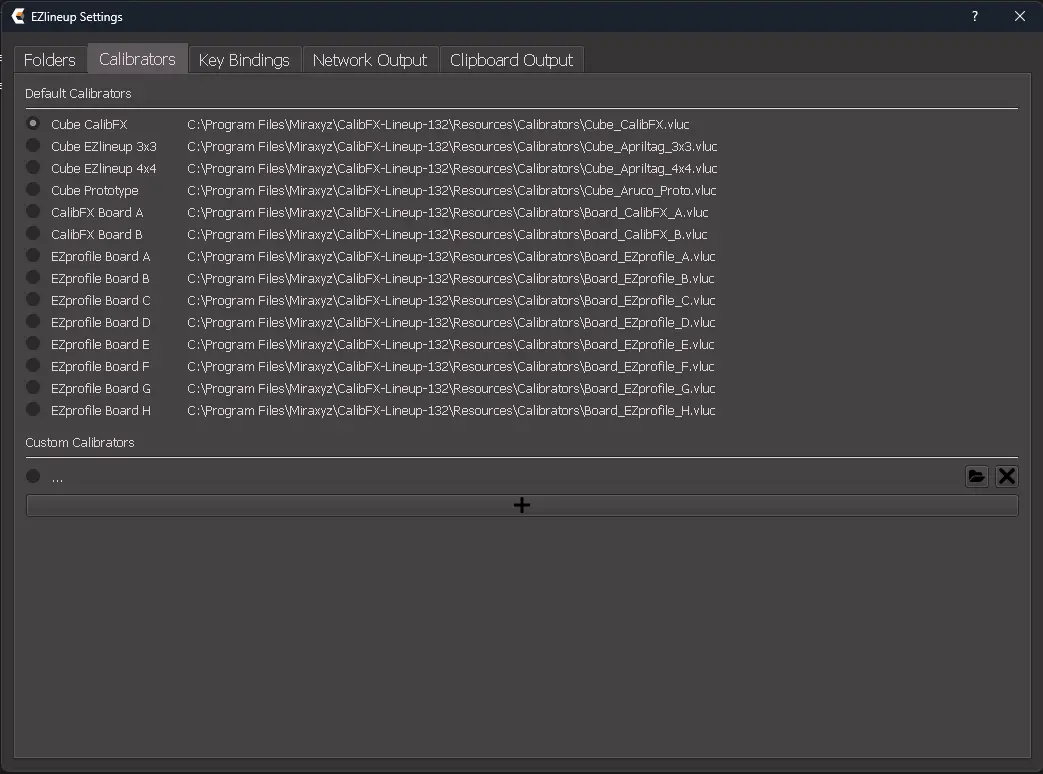
A new line appear. Clic on the folder icon
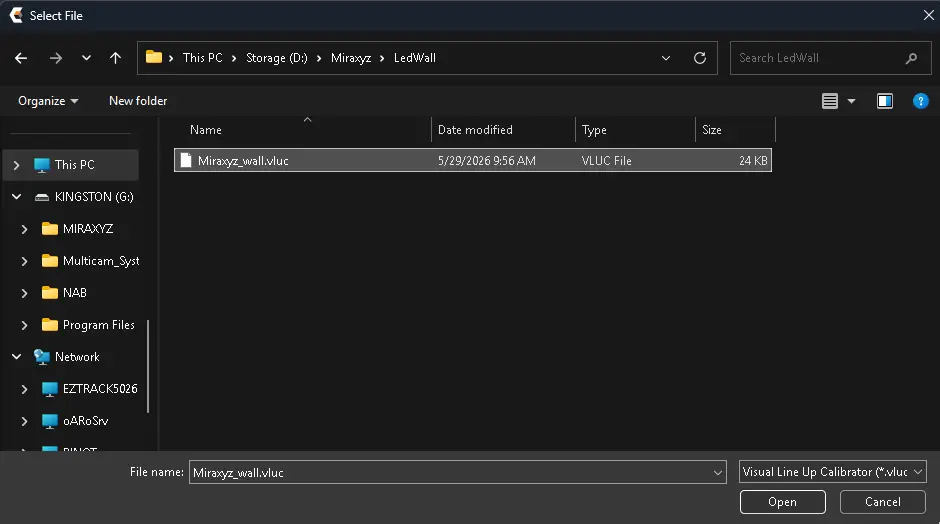
On the File Explorer popup, select your Led wall vluc file
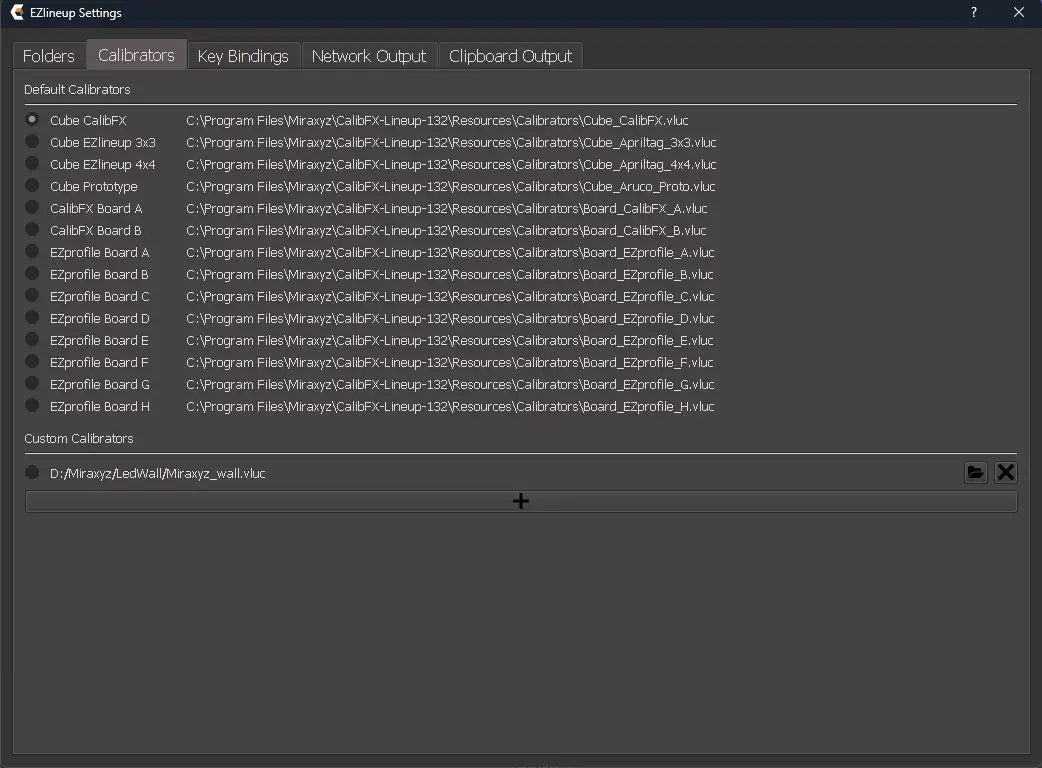
Your LED wall calibrator is imported (but not enabled !)
To enable it, clic on the radio button on the left of your Calibrator line
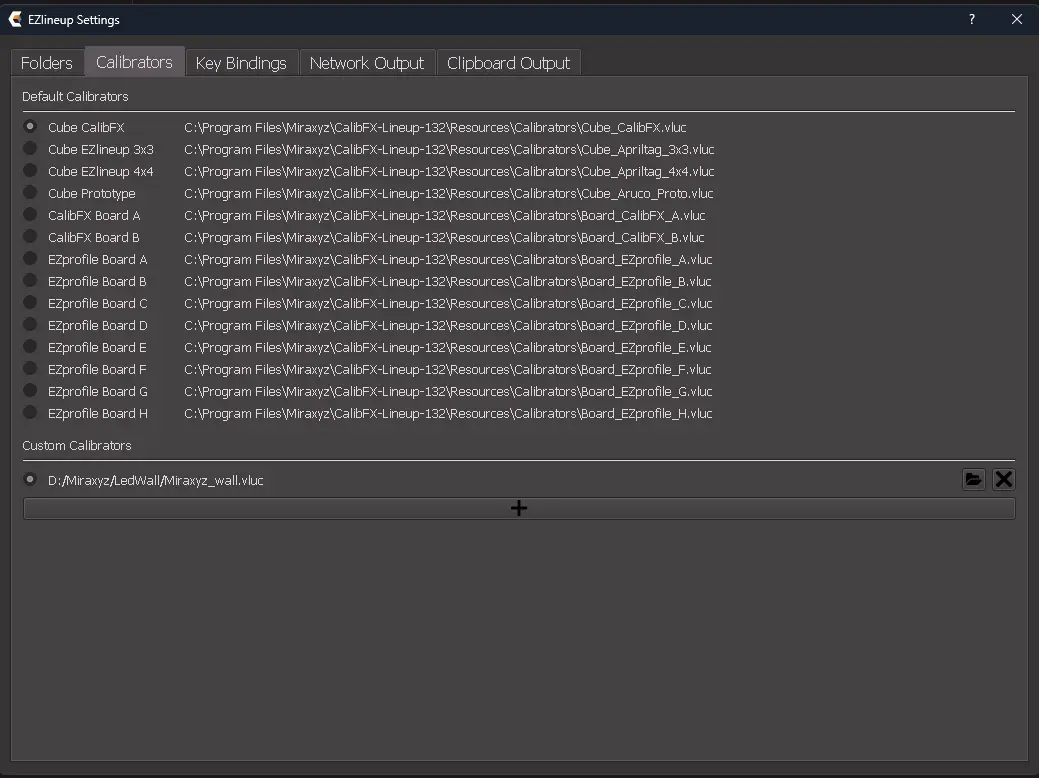
Close the Settings panel
You're now ready to start a Lineup with your LED wall !