Export

There are many ways to export the result out of CalibFX Lineup.
The recommended targets for each method are indicated in parentheses.
1. Copy-Pasting
(EZtrack, Unreal Engine, Other...)
The most straightforward way to export the offsets if there is no existing integration between CalibFX Lineup and the tracking system or render engine is to copy-paste the values manually, selecting the right axes to represent the front, right and up directions.
Note
- Pan is a rotation around the Up axis, positive toward the right
- Tilt is a rotation around the Right axis, positive upward
- Roll is a rotation around the Front axis, positive toward the right
Warning
rotations assume Intrinsic Pan-Tilt-Roll Euler order. (ZXY if Z is up,Y front, X right)
There is an automated Copy-Paste link between CalibFX Lineup and EZtrack. You can use the copy button to batch copy an EZtrack rig node in the clipboard. More Details Here

2. Network Output
(Aximmetry, RigFX, Sony FR7, Custom FreeD Pipeline)
There is a direct network API link between CalibFX Lineup and the following targets:
- FreeD
- Aximmetry (HTTP)
- RigFX
- Sony FR7 (CGI)
The current target is selected and configured in the Tools → Settings → Network Output tab:


Once this is configured, you can press the Send button next to either offset, the one with an arrow. There is also a Send Zero button, with a 0 on the left side of the arrow. It can be useful to reset quickly in the destination:

2.1 Aximmetry
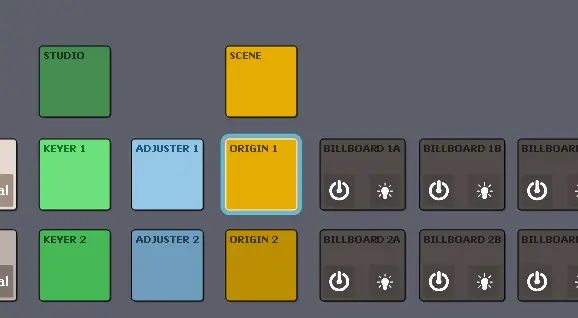
In Aximmetry, on the Inputs control board, select the Origin node of your camera.
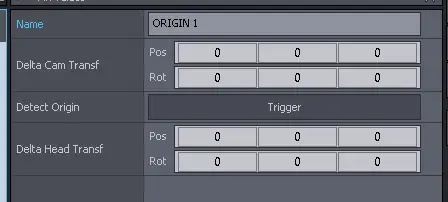
The Pin values panel (on the right) displays the Studio offset and Sensor offset inputs (Delta Cam Transf Path and Delta Head Transf Path).
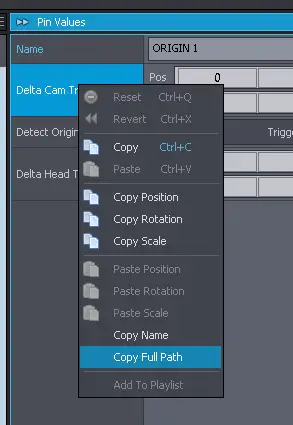
Right-click on the Delta Cam Transf Path label (Studio offset) and choose the Copy Full Path option.
In CalibFX Lineup, on the Tools/Settings menu, Network Output tab, select the Aximmetry protocol.
Configure the IP and port of the Aximmetry target.
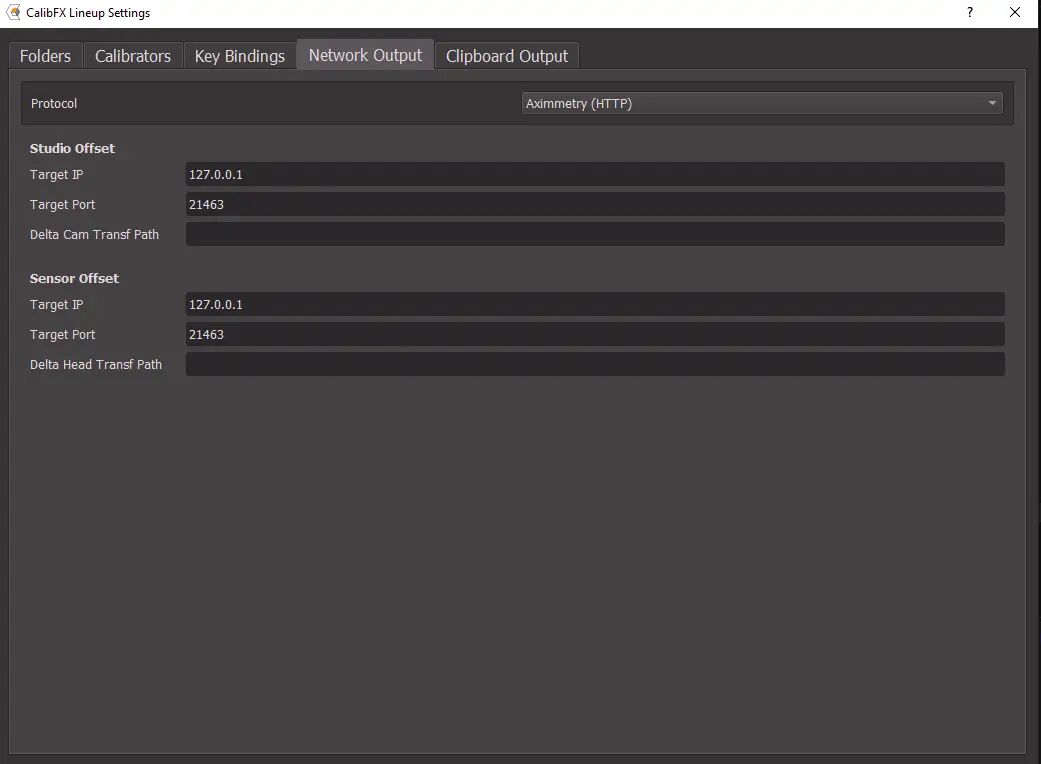
Paste the full path value in the Delta Cam Transf Path field.

Repeat the same process for the Sensor Offset (Delta Head Transf Path): copy/paste the full path from Aximmetry to CalibFX Lineup.
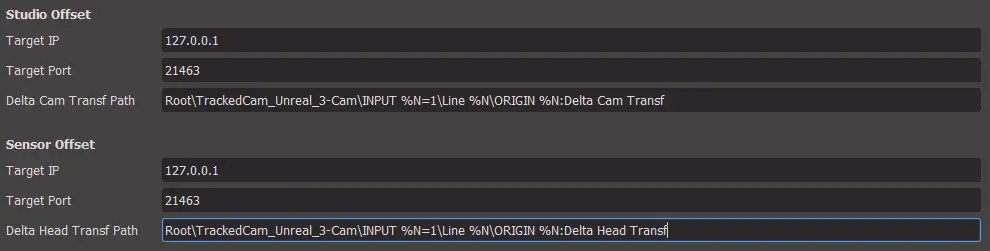
Close the Settings window and press the Send button next to each offset to transfer the values to Aximmetry.

3. JSON Output
(ClassX)

This is a standard JSON-formatted text containing the computed offsets. Press "Copy Results to Clipboard" to paste it quickly elsewhere, or "Export Result as File" to save to the disk.
In both cases the textual content is the same.
JSON Output Format
The exported format looks like this:
{
  "Version": "1.0",
  "CameraName": "Cam0",
  "StudioOffset": {
    "Front": -2.0153,
    "Right": -0.9634,
    "Up": 0.0177,
    "Pan": -91.843,
    "Tilt": -0.408,
    "Roll": 0.543
  },
  "SensorOffset": {
    "Front": -0.0978,
    "Right": -0.0139,
    "Up": -0.0414,
    "Pan": 0.562,
    "Tilt": 0.666,
    "Roll": 0.102
  }
}
FreeD referential is used, as in the UI.