Lighthouse Trackers - Debug Pairing
If you experience issues pairing a lighthouse tracker using EZtrack, you can check the pairing procedure using the following method. Afterwards, the device will be paired correctly to the dongle for EZtrack as well.
Install SteamVR through Steam, the go to [Steam]\steamapps\common\SteamVR\bin\win64 and open "vrmonitor.exe".
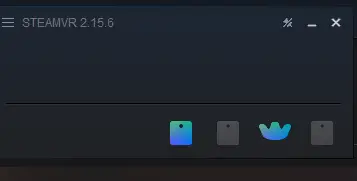
Connect your tracker via USB to your computer, with a base station in sight. You should see this:
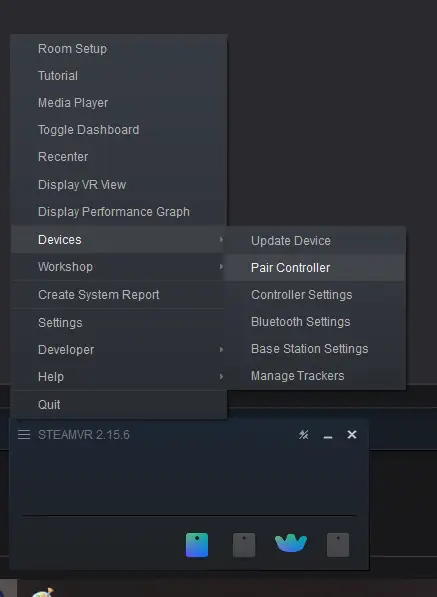
Now connect the dongle to your PC. Go to Device -> Pair Controller:
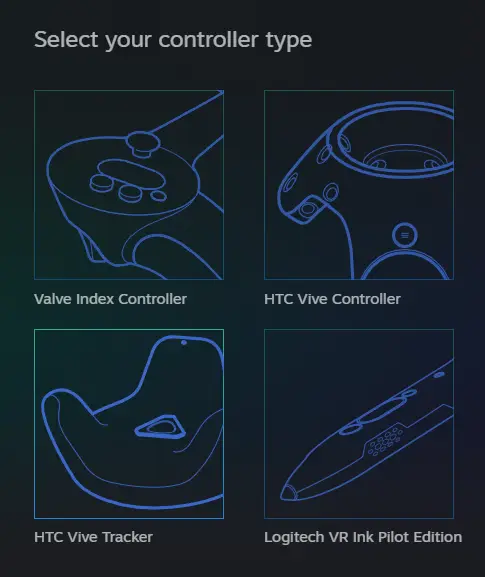
Choose HTC Vive Tracker:
Follow the instructions (same as when pairing with EZtrack) The interface may not show that pairing was successful, but if the tracker blinks blue then turns green it should be paired correctly.
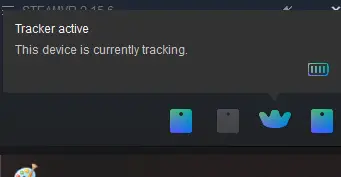
Disconnect the USB and after moving the tracker around in view of the base stations, verify that it appears again in the interface:
When connecting the dongle to EZtrack and turning on the tracker, a blue or grey tracker icon should appear on the left, in the lighthouse section. After it has appeared you will need to manually create the rig on the right and point it to that tracker, or click the "++" button to automatically refill all lighthouse rigs.